When you reuse a Miro board, the same text can appear in more places than you expect. A client name might be written across sticky notes, cards, text boxes, frame titles, workshop instructions, and follow-up sections. A project date might appear in several areas of a planning board. A placeholder like [Client Name] can be scattered across a template.
If the board is small, manual editing may be manageable. But on a large board, finding and updating every repeated term can quickly become slow, repetitive, and risky. One missed old client name or outdated date can make a board feel unfinished before a workshop, client presentation, or team meeting.
This guide explains a simple way to think about finding and replacing text in Miro: search for the repeated term, preview where it appears, replace it carefully, and review the board before sharing.
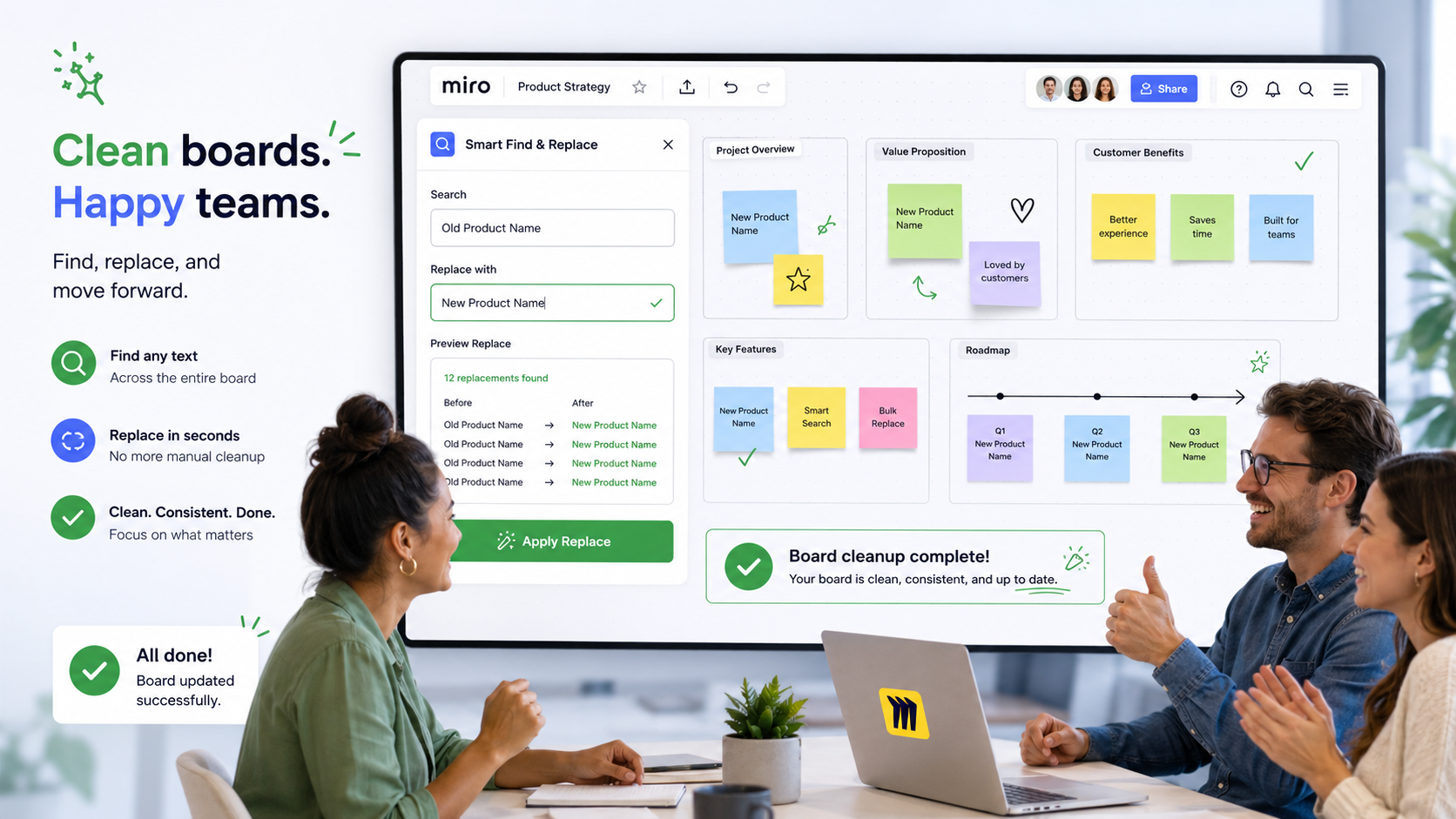
Why users need find and replace in Miro
Find and replace is useful when a board contains repeated text that needs to be updated consistently. This is especially common when teams reuse boards or templates.
- Updating a client name before a workshop
- Replacing an old project name in a planning board
- Changing repeated dates across a recurring template
- Cleaning placeholders like [Client Name], [Date], or [Project]
- Fixing repeated spelling mistakes
- Updating terminology after a product, team, or campaign name changes
The real problem is not only time. It is confidence. Before sharing a board, users want to know that old details are not still hiding somewhere on the canvas.
The manual way
The manual way is simple but painful: search or visually scan the board, open each matching item, edit the text, and repeat until everything is updated. This can work for a few sticky notes. It becomes frustrating when the same term appears dozens of times.
Manual cleanup also creates room for mistakes. You may update visible sticky notes but miss a card description, frame title, section label, or hidden item in a large board. That is why a structured replacement workflow is helpful.
A faster workflow with Smart Find & Replace
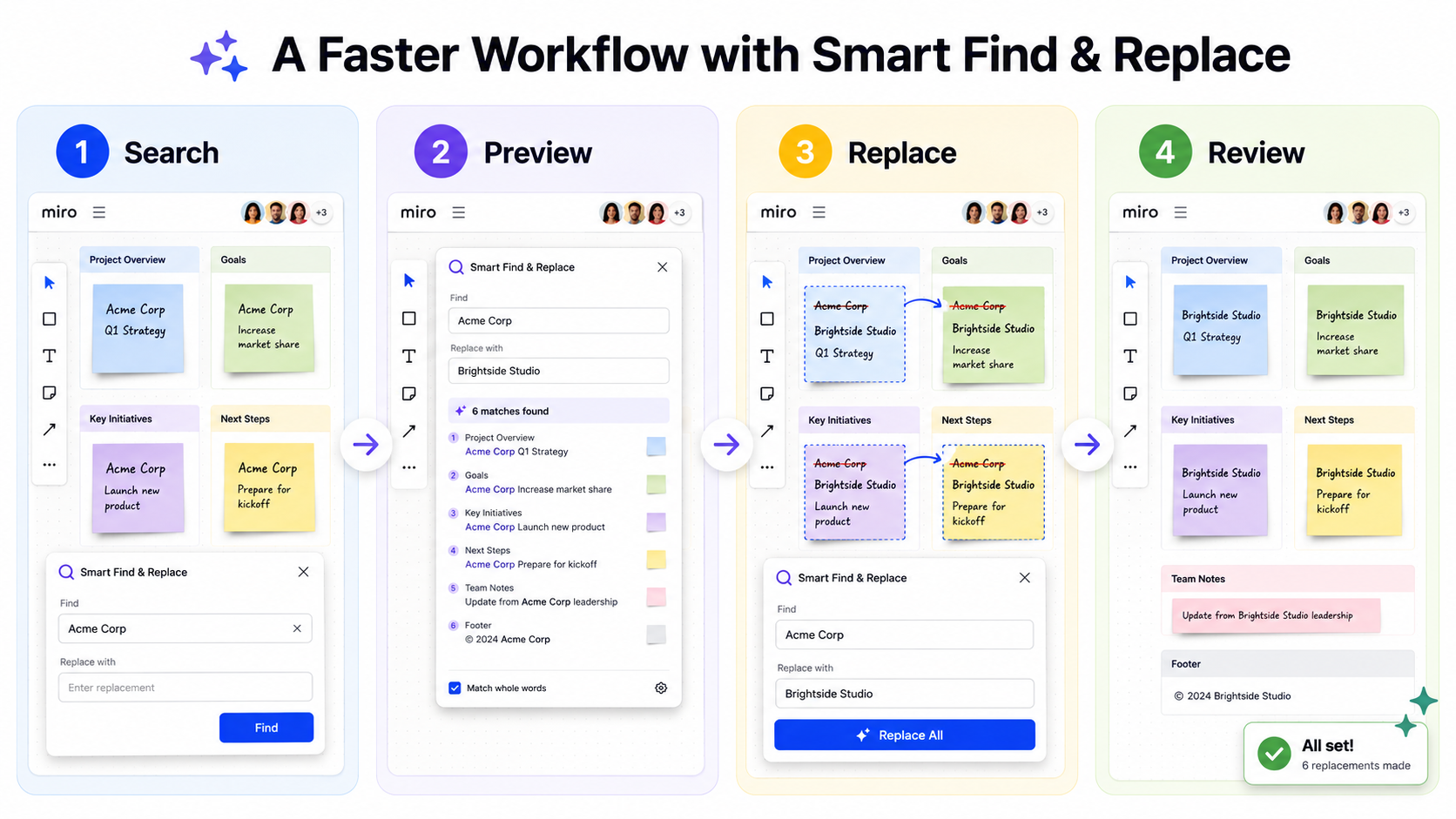
Smart Find & Replace is built around a practical board-cleanup workflow. Instead of manually editing item by item, users can move through a clearer process:
- Search for the repeated text you want to update.
- Preview the matching items before applying changes.
- Replace the repeated text across the board.
- Review the cleaned board before sharing it.
This workflow is useful because it gives users both speed and control. The preview step is important: bulk replacement should not feel like a risky blind action.
Example use case
Imagine a consultant clones a workshop board from an old client. The old client name appears 40 times across the board. Instead of clicking every sticky note manually, the consultant searches the old client name, previews the matches, and replaces it with the new client name.
The result is a cleaner, client-ready board with less manual work and lower risk of missing something embarrassing.
When Smart Pro helps
Exact find and replace is useful when the text is written the same way everywhere. Smart Pro becomes more useful when the board is messy or inconsistent.
- The same client name appears in several variations.
- Placeholders are written differently across the board.
- Project terms are inconsistent.
- Template variables need deeper cleanup.
- Large boards require repeated cleanup workflows.
In those cases, Smart Pro can be positioned as the upgrade for users who need smarter cleanup beyond exact matching.
Who this is useful for
This workflow is especially useful for consultants, agencies, workshop facilitators, product teams, marketing teams, and template creators. Anyone who reuses Miro boards can benefit from a faster way to update repeated text.
Try Smart Find & Replace
Smart Find & Replace helps Miro users find, preview, and replace repeated text across boards. Install it from Miro Marketplace and use it when old names, dates, placeholders, or repeated terms need to be cleaned up faster.
FAQ
Can I find and replace text in Miro?
Smart Find & Replace is designed to help users search, preview, and replace repeated text across Miro boards.
Can I preview before replacing?
Yes. The preview step should help users stay in control before applying changes.
What types of text can I replace?
Common examples include client names, project names, dates, placeholders, repeated instructions, and terminology.
What does Smart Pro add?
Smart Pro is positioned for smarter cleanup, including variations, placeholders, inconsistent wording, and larger workflows.
Is this useful for large Miro boards?
Yes. The larger the board, the more valuable a structured find, preview, and replace workflow becomes.
Try Smart Find & Replace
Find, preview, and replace repeated text across Miro boards before old names, dates, placeholders, or repeated terms slow the team down.
Install from Miro Marketplace