One old client name left inside a Miro board can be a small mistake with a big impact. It can make a workshop board, strategy template, or planning session feel rushed, reused, or unfinished.
This happens often when consultants, agencies, facilitators, product teams, or marketing teams clone boards for new clients and projects. The structure is useful, but the old details need to be updated everywhere before the board is shared.
This article explains how to replace client names across a Miro board with a cleaner workflow.
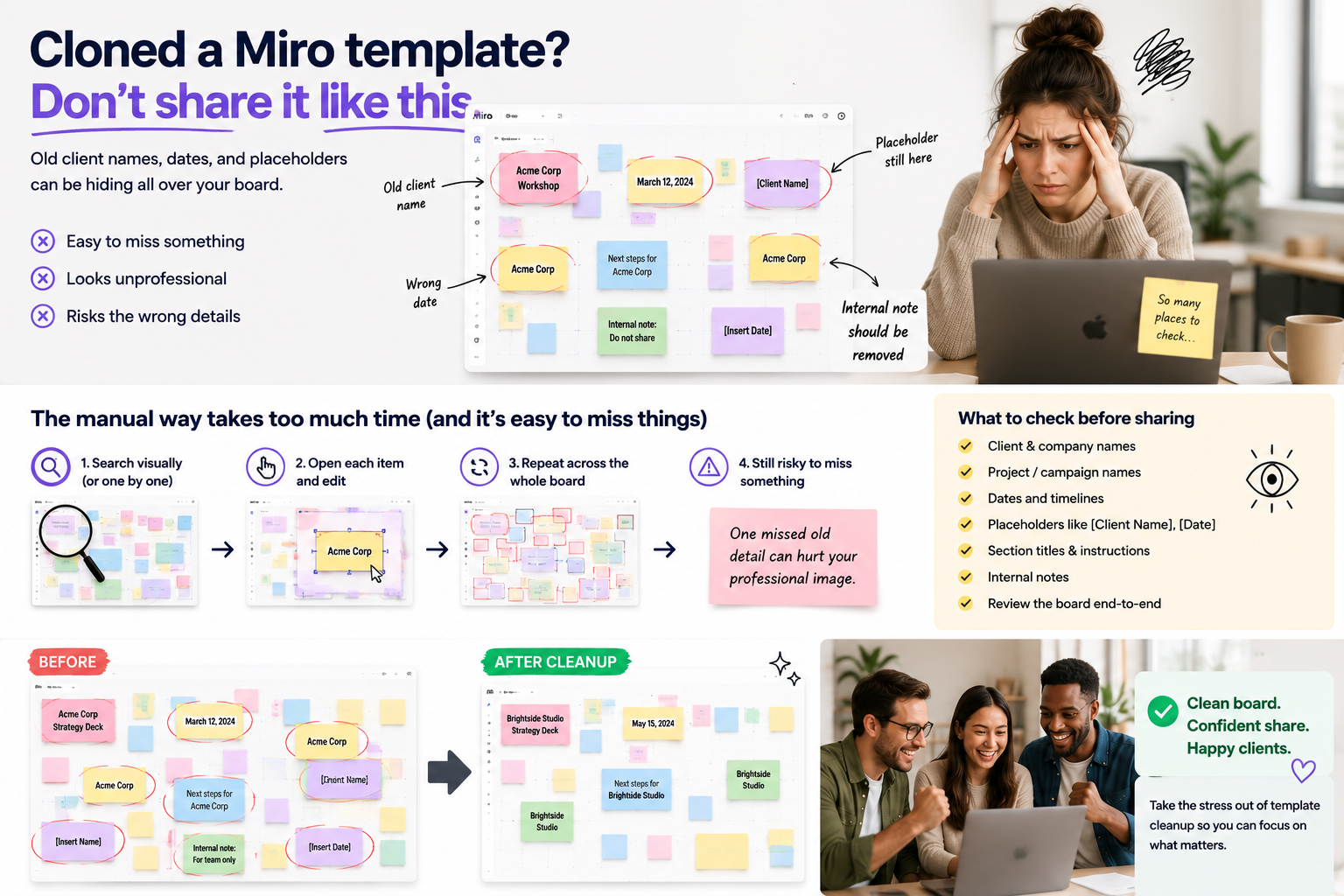
Why client-name mistakes happen
Client names can appear in more places than expected. A cloned board may include the old company name in the title, sticky notes, cards, frame names, exercises, instructions, follow-up sections, and internal notes.
- Cloned workshop templates
- Reused strategy boards
- Copied onboarding boards
- Recurring client planning boards
- Agency campaign templates
- Product discovery or research boards
The more reusable the board is, the more likely it is that repeated client text needs to be cleaned up.
Why manual replacement is annoying
Manual replacement takes attention. You may search for the old client name and then click through each result one by one. On a small board, that may be fine. On a large board, it quickly becomes repetitive.
The problem is not just that manual work takes time. It is that manual work creates uncertainty. Did you update every section? Did you miss a frame title? Did an old client name stay hidden in a note at the edge of the board?
What to check before sharing a client board
- Old client name and old company name
- Project name or campaign name
- Stakeholder names
- Workshop or session dates
- Client-specific instructions
- Internal notes from the previous board
- Placeholders that were not replaced
This is a simple checklist, but the faster method is to search and preview all matches before replacing.
A faster workflow with Smart Find & Replace
Smart Find & Replace helps users replace client names through a direct workflow:
- Search the old client name.
- Preview all places where it appears.
- Replace it with the new client name.
- Review the updated board before sharing.
This is especially useful when the same name appears many times across a board. Instead of editing sticky notes one by one, users can clean repeated text faster and with more confidence.
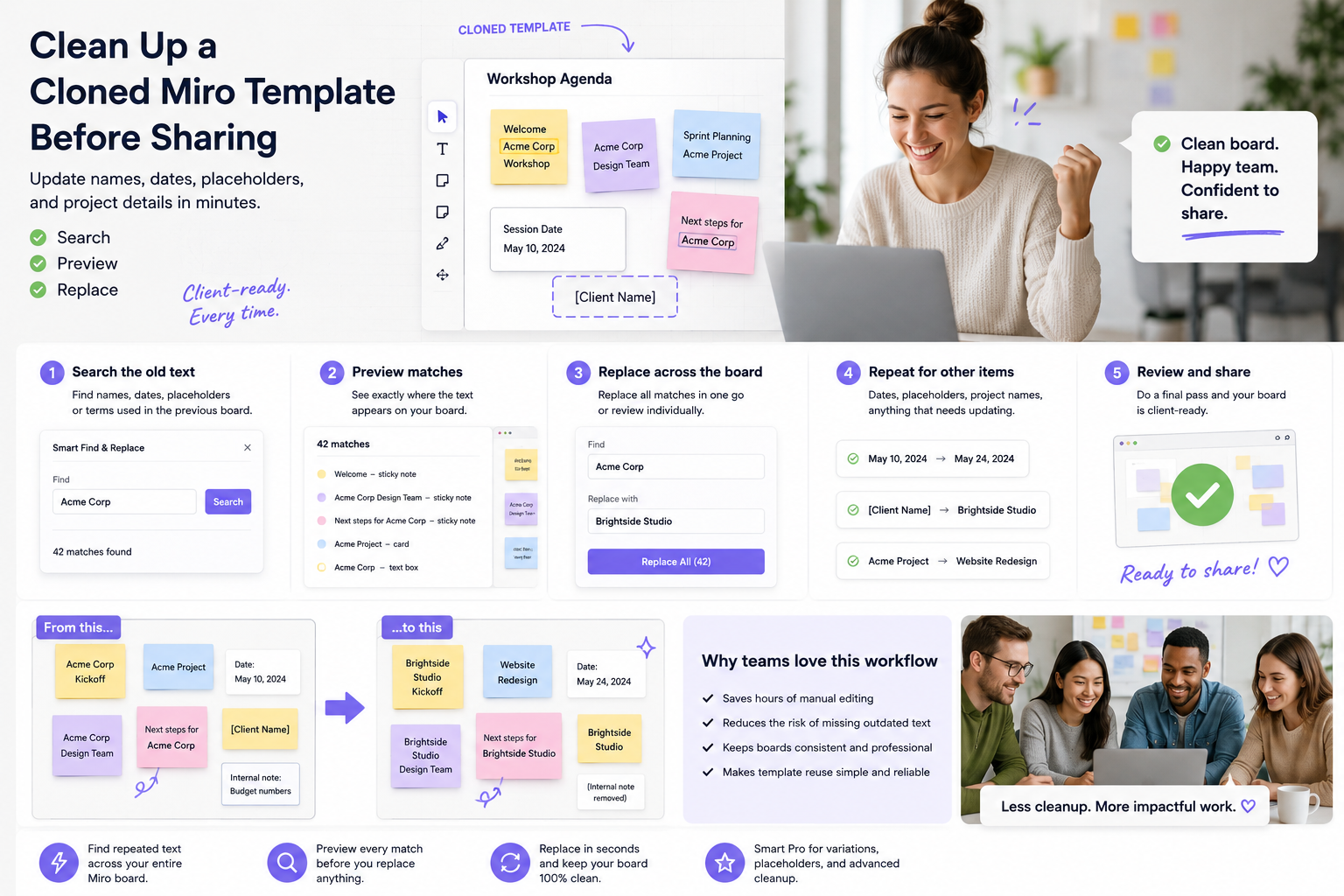
Example: replacing Acme Corp before a workshop
Imagine you cloned a workshop board that was originally created for Acme Corp. You now need to use the same structure for Brightside Studio. The old client name appears in the welcome note, agenda, exercises, success criteria, and next-step section.
With Smart Find & Replace, you can search “Acme Corp,” preview every match, and replace it with “Brightside Studio” before the client opens the board.
When Smart Pro helps
Exact replacement works best when the old client name appears the same way everywhere. Smart Pro helps when the board includes variations, abbreviations, placeholders, or inconsistent wording.
- Acme Corp
- ACME
- Acme
- [Client Name]
- Old client
Those variations are easy to miss manually and can be a strong reason for teams to use smarter cleanup features.
Try Smart Find & Replace
Smart Find & Replace helps teams update client boards faster by finding, previewing, and replacing repeated text across Miro boards. Use it before sharing cloned templates, workshop boards, or client planning boards.
FAQ
How do I replace a client name across a Miro board?
Search the old client name, preview every match, replace the text, and review the board before sharing.
Why is this useful for agencies?
Agencies often reuse boards across clients, so client-name cleanup is a recurring task.
Can this help with project names too?
Yes. The same workflow can apply to project names, campaign names, dates, placeholders, and repeated terms.
What if the client name appears in different formats?
That is where Smart Pro can help with variations and inconsistent wording, depending on confirmed product capabilities.
Try Smart Find & Replace
Find, preview, and replace repeated text across Miro boards before old names, dates, placeholders, or repeated terms slow the team down.
Update client boards faster